
Permission Groups allow you to control the access levels of the users. You can assign Read, Create/Edit, or Delete permissions to LPSM Site permission items. You can also group different permissions into a single permission group.
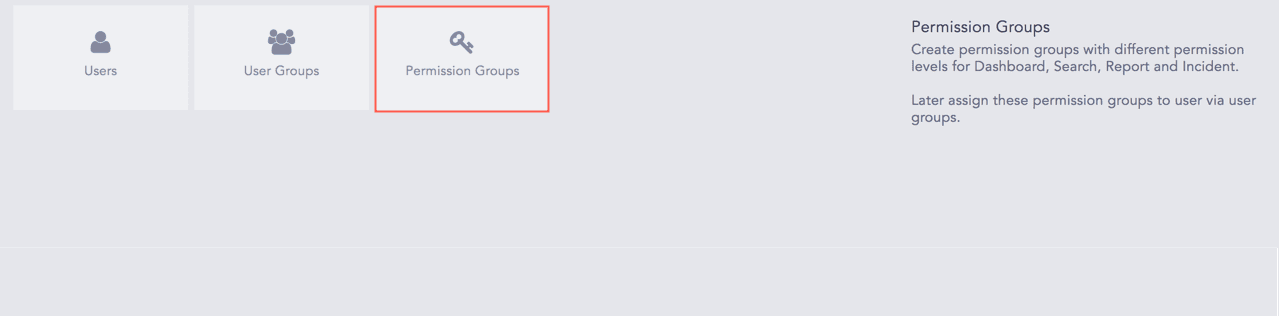
Permission Groups
Go to Settings >> User Accounts >> Permission Groups.
Note
There are two permission groups in LPSM by default:
The Operator permission group has read only site permission.
The Admin permission group has all the read, create, and delete site permissions.
The default permission groups cannot be edited or deleted.
Click Add.
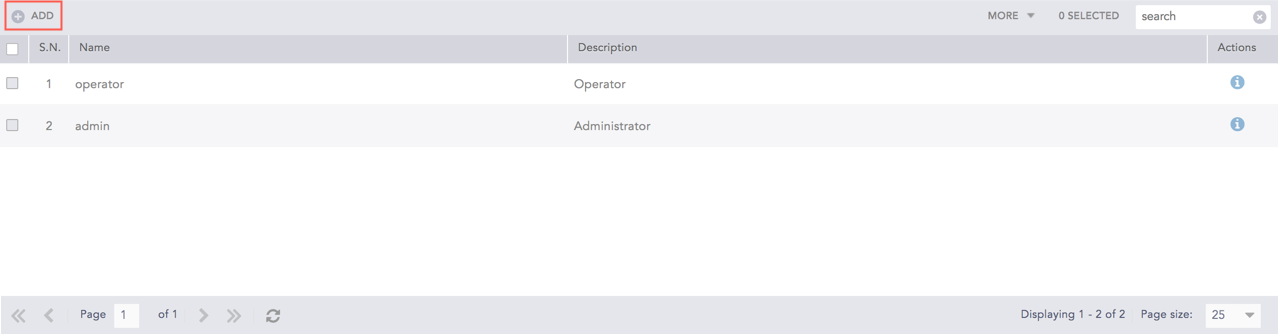
Add a Permission Group
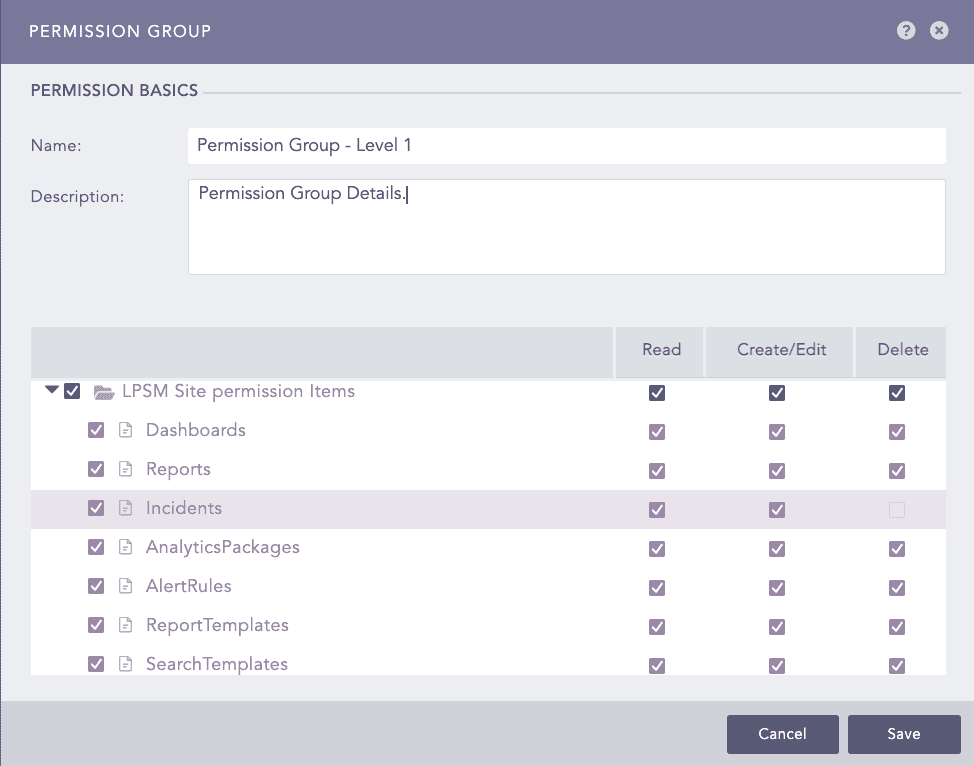
Permission Group Pop-up Panel
Enter a Name and a Description for the permission group.
Select the LPSM Site permission Items such as Dashboards, Reports, Incidents, ReportTemplates, AlertRules, AnalyticsPackages, SearchTemplates, and SearchPackages along with the permissions of Read, Create/Edit, or Delete.
For example, if you select Read, and deselect Create and Delete for Dashboards, then the user mapped with the corresponding Permission Group can view the subscribed dashboards but cannot add or delete them.
Note
When the site permission of Delete is selected then the permission of Read and Create is enabled automatically. Similarly, when access to Create is selected, Read is also enabled.
Click Submit.
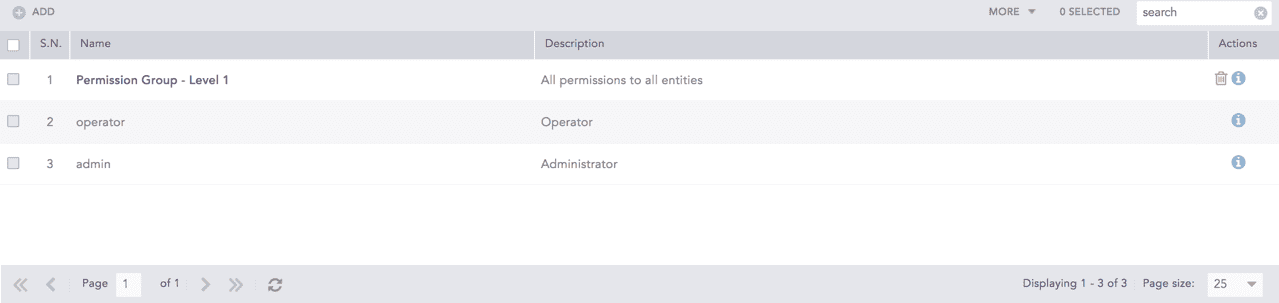
List of Permission Groups
The newly added permission group can be assigned to any user group.
Click the Name of the group.
Update the information and click Submit.
Before deleting a permission group, make sure it is not assigned to any user.
To delete a permission group, click the Delete ( ) icon from the Actions column of the permission group.
Note
To delete multiple permission groups, select the permission groups. Click the More drop-down and select Delete Selected.
To delete all permission groups, click the More drop-down and select Delete All.
Click Yes.